
Exploring Canva AI Image Generator Features: A Practical Explainer
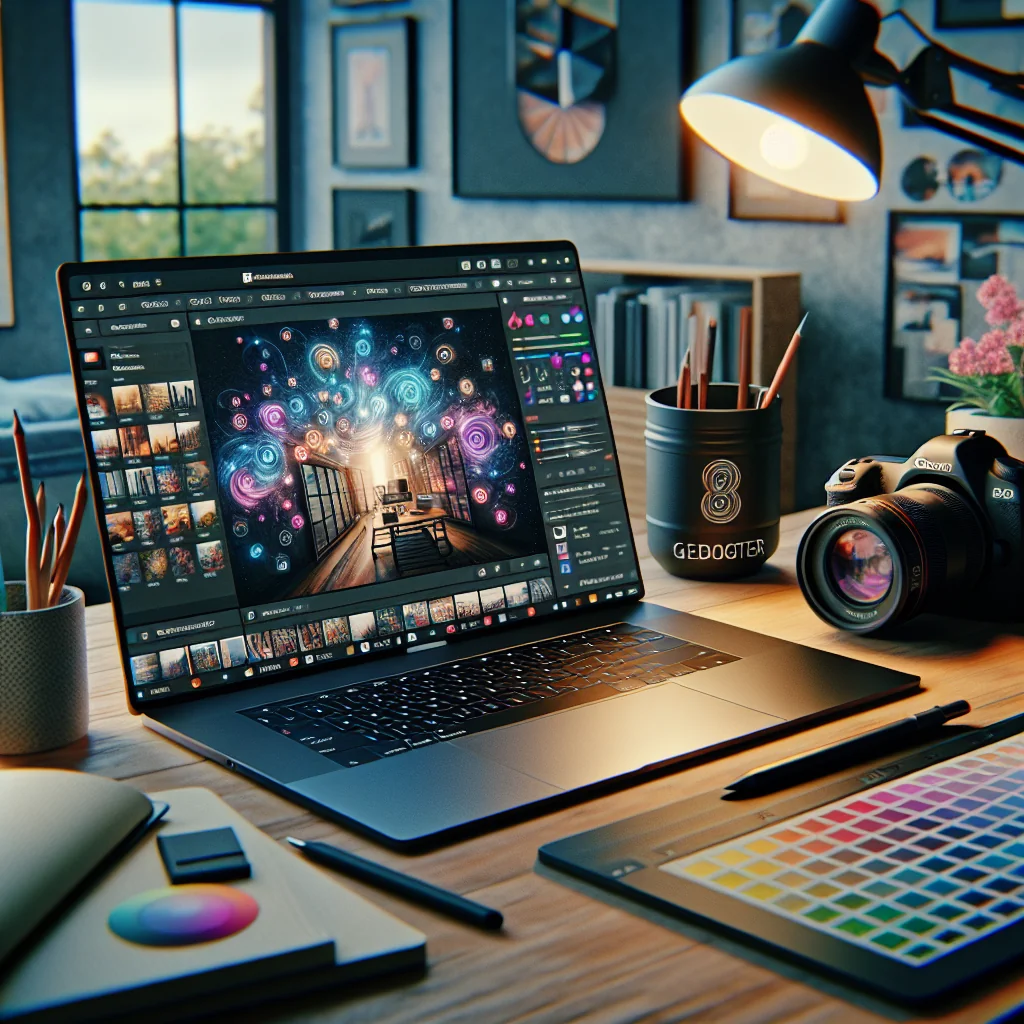
Exploring Canva AI image generator features is useful if you create blog graphics, social posts, or quick concept art. Canva’s AI tools sit beside many other apps and services you might use daily, such as design software, note apps, and data tools. This guide explains what Canva’s AI image generator does, how its main features work, and how you can fit those features into a wider content workflow.
Where Canva AI Image Generator Fits in Your Tool Stack
Canva’s AI image generator turns short written prompts into custom images that you can edit like any other Canva design. The tool looks simple at first, yet it includes several options that help with blog graphics, tutorials, diagrams, and interface mockups. Because the generator is built into Canva, you can move from idea to finished visual without leaving the same browser tab.
Many creators now treat Canva as one block in a larger tool stack. You might plan content in a notes app, track ideas in a spreadsheet, and draft scripts or articles in a text editor. Canva then becomes the visual layer that turns those plans into clear graphics, thumbnails, and illustrations. The AI generator speeds up that visual step, especially when you need many small images.
This “stack” mindset matters because it changes how you judge features. Instead of asking whether Canva has every possible AI trick, you consider whether its features help you move faster from prompt to published content while staying inside one familiar workspace.
Core Canva AI Image Generator Features Explained
The core features of Canva’s AI image generator focus on turning plain language prompts into editable visuals. These features are less about flashy effects and more about helping non-designers create clear, on-brand graphics for many topics.
- Prompt-based image creation: Type a short description such as “minimalist laptop illustration for a tech tutorial” and Canva generates several image options you can choose from.
- Style and aspect ratio choices: Pick square, portrait, or landscape layouts so images fit blog headers, social feeds, or presentation slides without extra cropping.
- Integrated editing tools: After Canva generates an image, you can add text, shapes, icons, charts, and overlays right on the same canvas.
- Background and object flexibility: Generate clean backgrounds, abstract shapes, or scene elements that you can reuse across multiple designs.
These features help most when you need fast, consistent visuals for text-heavy content. Instead of hunting for stock photos that almost match your topic, you describe what you need and adjust the result inside Canva. Over time, this makes it easier to keep a steady visual style across posts, guides, and social updates.
Comparing Canva AI Image Generator With a Standalone AI Tool
Many creators use Canva AI alongside at least one standalone AI image tool. Each option has a different focus, and understanding that focus helps you pick the right one for each project. Canva leans toward integrated design and layout, while many standalone tools focus on raw image generation.
The short comparison below shows how Canva AI image generator stacks up against a typical standalone AI image creator for everyday content work.
Comparison of Canva AI Image Generator and a Standalone AI Image Tool
| Aspect | Canva AI Image Generator | Standalone AI Image Tool |
|---|---|---|
| Main strength | Built-in with templates, text tools, and layouts. | Specialized image generation with many prompt options. |
| Best use case | Blog graphics, social posts, and quick diagrams in one place. | High-detail scenes or concept art to edit elsewhere. |
| Editing workflow | Edit AI images directly on a multi-layer canvas. | Generate, download, then edit in a separate design app. |
| Content focus | Helpful for explainers, tutorials, and interface-style mockups. | Helpful for artistic scenes, characters, and creative posters. |
For projects that need many small visuals, such as step-by-step guides or comparison posts, Canva’s all-in-one approach is often faster. If you want a single, very detailed illustration, a standalone tool can be a strong starting point, and you can still bring that image into Canva for final text and layout work. In practice, many creators combine both: Canva for routine content and a separate generator for special hero images.
Practical Ways Content Creators Use Canva AI
Writers, educators, and marketers often cover a wide range of topics, from software tutorials to product explainers. Canva’s AI generator helps you support those posts with visuals even if you do not have formal design training. The key is to think in terms of simple, repeatable image types.
For instructional guides, AI images work well between real screenshots. You might use them for stylized icons, simple diagrams, or scene-setting headers that match your color palette. For product or app explainers, Canva can generate neutral device mockups, abstract dashboards, or feature highlight cards that show key ideas without exposing real accounts or data.
These visuals give your content structure. A page with clear section headers and small, focused images is easier to scan than a long block of text. Readers can glance at an illustration and quickly grasp whether a section covers setup, comparison, or troubleshooting, which keeps them engaged longer.
Step-by-Step: Generating an AI Image in Canva
Using Canva’s AI image generator is straightforward once you understand the basic flow. The process below works for most blog graphics, simple diagrams, and social visuals, and you can adapt it to your own style.
- Open a new design in Canva and choose a size that fits your goal, such as a blog banner, presentation slide, or social post.
- In the sidebar, locate the AI image tool and select it to open the prompt field.
- Write a clear description that includes subject, style, and purpose, such as “flat illustration of a person using a laptop, soft colors, blog header style.”
- Pick an aspect ratio and any style preset that matches your brand or project, then click generate to see several image options.
- Review the results, choose the best one, and place it on your canvas; adjust the size, crop, and position as needed.
- Add text, shapes, arrows, or icons that connect the image to your article, such as labels for key steps or features.
- Export the final design in your preferred format and upload it to your site, slide deck, or social channel.
After a few runs, this process becomes routine. The main skill is writing prompts that clearly describe what you want. Mention the mood, color style, and layout role of the image, such as “simple diagram with three boxes and arrows,” rather than only naming the subject. Clear prompts usually lead to more usable results and less time spent regenerating images.
Blending AI Images With Screenshots, Charts, and Data
Strong informational content rarely relies on AI images alone. Instead, creators often mix screenshots, charts, and AI visuals in the same layout. Canva is useful here because you can place all these elements on one canvas and keep them aligned with your brand colors and typography.
A common pattern is to use real screenshots for anything that must be exact, such as menu paths or settings, and AI images for context. For example, you might show a screenshot of a settings window, then place it on top of an AI-generated background that suggests a device, workspace, or abstract pattern. This keeps the tutorial accurate while making the page look less plain.
You can also bring charts or tables from a spreadsheet into Canva and pair them with AI-generated icons or backgrounds. This combination gives your article or slide deck a more polished look while still grounding the content in real data. The AI image becomes supporting context rather than the main source of information.
Using Canva AI for Apps, Messaging, and Social Topics
Many modern articles and posts discuss apps, messaging tools, and social platforms. These topics often involve private data, so showing real screens is not always ideal. Canva AI image generator helps by creating neutral visuals that suggest an interface without copying it exactly.
For example, a comparison between two messaging apps can use AI-generated phone silhouettes and generic chat bubbles as visual metaphors. A guide about private social profiles can use abstract avatars, masks, or silhouettes instead of real user photos. These images help readers understand the topic while keeping personal information off the page.
You can also use Canva AI to generate background scenes for social content, such as subtle gradients, abstract shapes, or simple desk setups. Once generated, you can reuse these backgrounds across several posts and only change the text or small graphic elements. This approach builds a consistent visual identity with minimal effort.
Supporting System and Security Topics With Clear Visuals
Technical subjects like device updates, error messages, and security checks can feel dry or stressful to readers. AI visuals can soften that impact and make the information easier to follow. The goal is not to decorate the page, but to break complex ideas into simple visual chunks.
For system topics, you might create diagrams that show a user device, a service, and a connection between them. Canva AI can generate the basic scene, and you can add arrows, labels, and short captions on top. Readers then see the flow at a glance before diving into detailed steps or commands.
For security or trust topics, neutral AI-generated scenes of devices, locks, or shields can support your explanations. These images should stay simple and calm in tone so they reinforce a sense of clarity rather than panic. When paired with clear text, they help readers feel that problems are understandable and solvable.
Exploring Canva AI Image Generator Features for Better Workflows
Canva AI image generator is most helpful when you see it as part of a larger workflow rather than a one-off novelty. You might plan topics in a document, outline sections in a notes app, gather data in a spreadsheet, and then move into Canva for visuals. Each step feeds the next, and the AI generator speeds up the visual stage.
As you explore Canva AI image generator features, pay attention to which ones save you time week after week. Maybe preset sizes and aspect ratios help you keep social posts consistent. Maybe background generation lets you reuse the same style across many tutorials. Over time, you can build a small library of prompts and layouts that match your brand.
Used this way, Canva’s AI tools become less about novelty and more about steady, reliable support for your content. Clear prompts, simple diagrams, and consistent styles help readers trust your guides and recognize your work. That trust and recognition matter more than any single flashy image and are where Canva AI image generator features truly earn their place in a modern content toolkit.